> For the complete documentation index, see [llms.txt](https://helpdesk.getfly.vn/llms.txt). Markdown versions of documentation pages are available by appending `.md` to page URLs; this page is available as [Markdown](https://helpdesk.getfly.vn/web-version/markdown/customer-management/creating-and-managing-customers-in-getfly-crm.md).
# Creating and Managing Customers in Getfly CRM
Creating and Managing Customers in Getfly CRM
## 1. User Permissions
To manage customer permissions in Getfly CRM, follow these steps:
Login to Getfly CRM with your admin account.
Click on Settings in the left sidebar menu.
Select Permissions.
Click on Role Groups.
Select the Customer Module tab.
Here, you'll see a list of access rights for the customer module. You can customize permissions for different role groups (user groups) based on your business needs. The available permissions include:
Access: Allows users to access the customer module in the system.
Add New: Allows users to add new customers to the system.
Edit: Allows users to edit existing customer information.
Delete: Allows users to delete customer information.
Permanently Delete: Allows users to permanently delete customers.
Download Customer List: Allows users to download the list of customers.
Departmental Customers: Allows users to view customer information based on department responsibility.
View All: Allows users to view all customers in the system.
## 2. Adding New Customers
### 2.1 Adding Individual Customers
To add a new customer in Getfly CRM:
Login to your Getfly CRM account.
Click on Customers in the left sidebar.
Click on Add New.
You will see the customer creation interface with the following fields:
Customer Information:
Customer ID, Name, Phone Number, Email, Address, Date of Birth, Gender, Tax Code, Province/City, District/County, Country.
Contact Information:
Contact Title, Name, Contact Phone, Email, Contact Birthday, Gender, Notes.
Additional Information:
Referrer, Industry, Relationship, Customer Source.
Required Fields: Fields marked with \*\* are mandatory.
You can also add custom fields depending on your business needs.
After filling in all the information, click Update to add the customer successfully.
### 2.2 Uploading Customer List
To add customers in bulk via a data file:
Login to your Getfly CRM account.
Click on Customers in the left sidebar.
Click the Upload Customers icon.
Select the data file you wish to upload.
Click Next to preview the data file.
Map the necessary fields and verify the data.
Click Next to complete the upload process. Getfly CRM will automatically add customers based on the file data.
## 3. Viewing Customer Details
The customer detail page includes various information, such as transaction history, customer feedback, and more. You can view all of this data in one place to better manage customer interactions.
## 4. Other Actions
### 4.2 Editing Customer Information
To edit customer information:
**Method 1: Edit in Customer Detail**
Access the customer detail screen.
Click on Action > Edit.
Make necessary changes.
Click Update to save the changes.
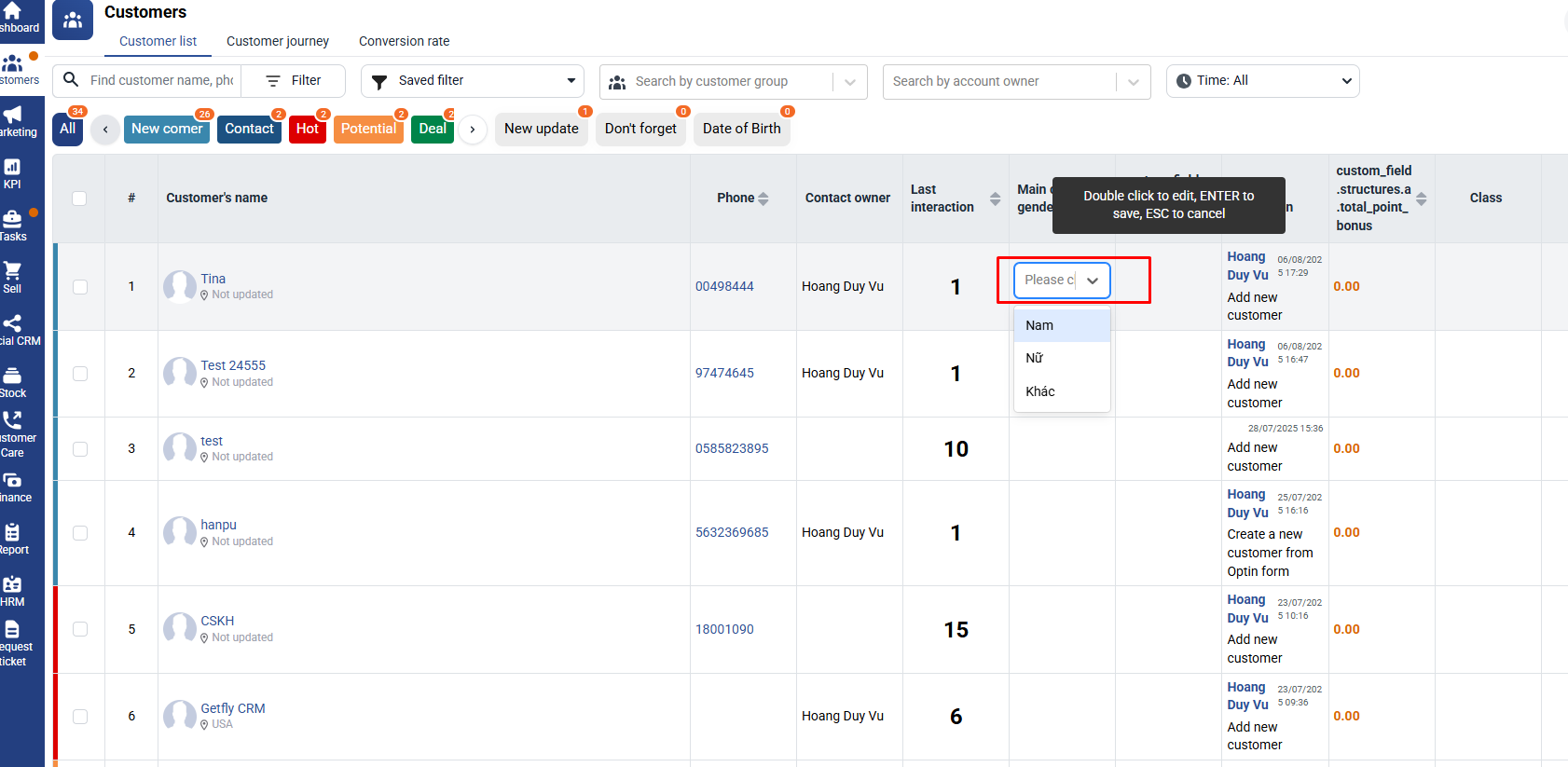
**Method 2: Edit from Customer List**
Go to the customer list screen.
Double-click the field you want to edit.
Make the changes.
Press Enter to save.
### 4.2 Deleting Customer Information
To delete a customer:
**Method 1: Delete a Single Customer**
Go to the customer detail screen.
Click on Action > Delete.
Click Confirm to delete.
**Method 2: Delete Multiple Customers**
Go to the customer list screen.
Select the customers you wish to delete.
Click the Delete Multiple icon.
Click Confirm to delete.
**Method 3: Permanently Delete a Customer After deleting a customer, they will be moved to the Deleted section. To permanently delete them:**
Go to the customer list screen.
Select Deleted from the filter (Advanced search > check the Deleted option).
Select customers to permanently delete.
Click Permanently Delete to confirm.
**Note:** If you don't permanently delete customers, the system will automatically remove them after 60 days.
### 4.3 Merging Customer Information
To merge duplicate customer records:
Go to the customer detail screen.
Click on Action > Merge Customer.
Search for the customer you want to merge.
Click Merge to complete the process.
**Note:** Fields like customer ID, name, avatar, referrer, and relationship are not supported for merging.
## 5. Customer Classification
You can classify customers based on various criteria such as:
Customer Relationship: Use this to segment customers based on their current relationship with the business (e.g., New, Hot, Potential, Lost, or Closed).
Customer Groups: Categorize customers by demographic or behavioral factors (e.g., age, industry, purchasing behavior).
Customer Source: Track where the customers came from (e.g., online marketing, referrals).
This classification allows you to manage customer engagement more effectively and helps target the right customers with tailored marketing efforts.