> For the complete documentation index, see [llms.txt](https://helpdesk.getfly.vn/llms.txt). Markdown versions of documentation pages are available by appending `.md` to page URLs; this page is available as [Markdown](https://helpdesk.getfly.vn/web-version/editor/customer-classification.md).
# Customer Classification
Customer Classification
## 1. Classification by Customer Group
Customer Groups in Getfly CRM are a useful feature that helps businesses classify and manage customers effectively. Customer groups are created based on common criteria such as:
Demographics: Age, gender, occupation, income, location, etc.
Needs and Interests: Products of interest, shopping behavior, loyalty level, etc.
Business Field: Industry type, business size, etc.
Buying Stage: Potential customers, interested customers, customers who have already made a purchase, etc.
A customer can belong to multiple groups.
### 1.1 Add New Customer Group
To create a customer group, follow these steps:
Go to Settings → System Configuration → CRM Configuration → Customers → Customer Groups → Create.
The system will display the screen for creating a new customer group. Enter the required information and click Create to successfully create the group.
(1) Select Parent Group: Choose a parent group if applicable.
(2) Customer Group Name: Enter the name of the group.
(3) Customer Group Code: The system will automatically generate this code.
### 1.2 Edit Customer Group
To edit a customer group:
Go to CRM Configuration → Customers → Customer Groups → Select the group you want to edit → Click Edit.
### 1.3 Delete/Restore Customer Group
To delete a customer group:
Go to CRM Configuration → Customers → Customer Groups → Select the group you want to delete → Click Delete.
To restore a deleted customer group:
Go to Disabled → Click Restore to recover it.
## 2. Classification by Customer Source
The Customer Source feature in Getfly CRM allows you to track and manage information about the origin of customers. This feature helps businesses classify customers based on the source of their information, enabling you to:
Track customer count by source.
Evaluate the effectiveness of marketing channels.
Plan advertising budgets more effectively.
### 2.1 Add New Customer Source
To create a new customer source, follow these steps:
Go to Settings → System Configuration → CRM Configuration → Customers → Contact Sources → Create.
The system will display the screen for adding a new customer source. Enter the required information and click Add New to successfully create the source.
### 2.2 Edit Customer Source
To edit a customer source:
Go to CRM Configuration → Customers → Contact Sources → Select the source you want to edit → Click Edit.
### 2.3 Delete/Restore Customer Source
To delete a customer source:
Go to CRM Configuration → Customers → Contact Sources → Select the source you want to delete → Click Delete.
To restore a deleted customer source:
Go to Disabled → Click Restore to recover it.
## 3. Classification by Relationship
Customer classification by relationship is an effective customer management tool that helps businesses improve the performance of marketing and sales departments, boosting sales and profits.
### 3.1 Add New Relationship
To create a new relationship, follow these steps:
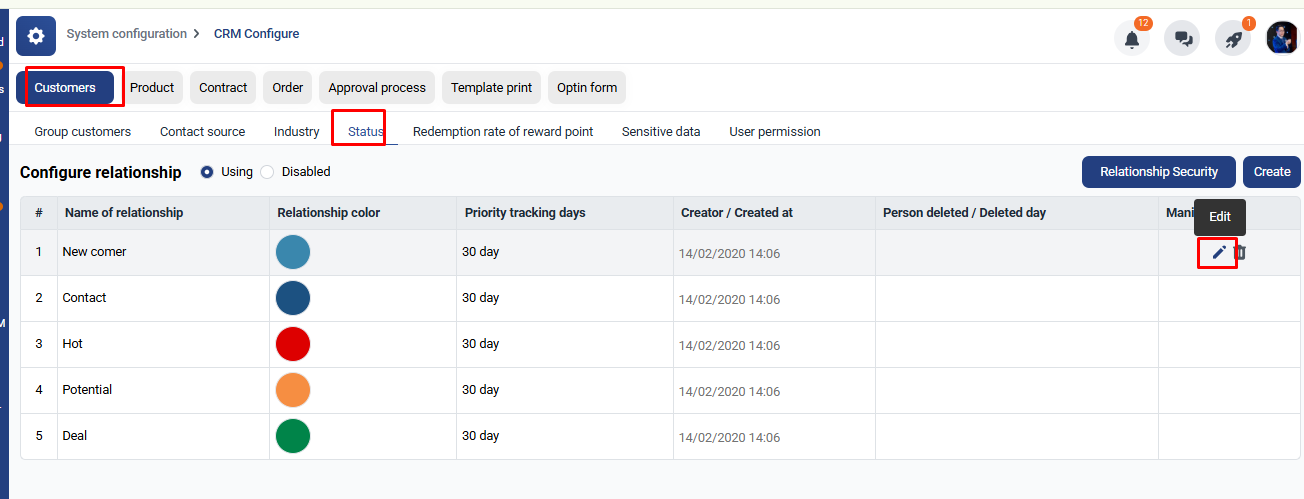
Go to Settings → System Configuration → CRM Configuration → Customers → Relationships (Status) → Create.
The system will display the screen for adding a new relationship. Enter the required information and click Add New to successfully create the relationship.
Here’s an explanation of each relationship status:
* New: A customer who has just been added or has had no interaction yet.
* Approached: A customer who has been met or contacted (via email, phone, etc.), but whose needs are not clear or who is not a strong prospect at the moment.
* Hot: A very promising customer who requires focused attention.
* Potential: A customer with potential and interest but needs more time or nurturing to make a sale. Less immediate than "Hot."
* Lost: A customer who has used your service but is no longer active or has switched to a competitor.
* Closed: A customer who has made a purchase, i.e., the deal has been successfully closed.
* Don't Forget (Automatic Status): If the customer has not been contacted in a set number of days (e.g., 30+ days), the system will automatically switch their status to Don’t Forget.
### 3.2 Edit Relationship
To edit a relationship:
Go to CRM Configuration → Customers → Relationships ( Status) → Select the relationship you want to edit → Click Edit.
### 3.3 Delete/Restore Relationship
To delete a relationship:
Go to CRM Configuration → Customers → Relationships (status) → Select the relationship you want to delete → Click Delete.
To restore a deleted relationship:
Go to Disabled → Click Restore to recover it.