> For the complete documentation index, see [llms.txt](https://helpdesk.getfly.vn/llms.txt). Markdown versions of documentation pages are available by appending `.md` to page URLs; this page is available as [Markdown](https://helpdesk.getfly.vn/web-version/interactive-blocks/questions-about-marketing/question-about-sms.md).
# Question about SMS
## Question 1: How can I send bulk SMS to all customers who have made a purchase on Getfly?
To send SMS to customers who have made a purchase, there are two methods as follows:
1. **Send via SMS Marketing**
This method is suitable when you want to send SMS to customers who made a purchase at the time of sending. Customers who make a purchase afterward will not receive the SMS.
**Step 1**: Create a filter for customers who have made a purchase
* Access Getfly → Go to Customer List → Click on Filters → Select Purchase Information → Choose Purchased Status, then select Greater than or equal to 1 (to filter orders that have been paid) → Create Filter.
Note: You can also choose a specific purchase time. If left blank, the system will consider all purchases up until now.
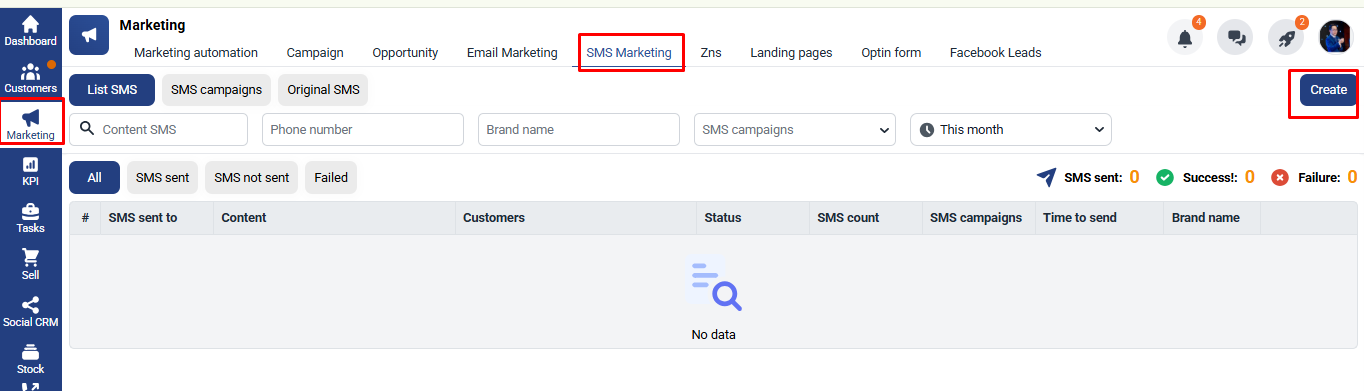
**Step 2:** Access SMS Marketing → Add New → Choose SMS Template, select the filter you just created → Add New.
2. **Send via Automation**
This method is suitable if you want to automatically send SMS to customers when they make a new order.
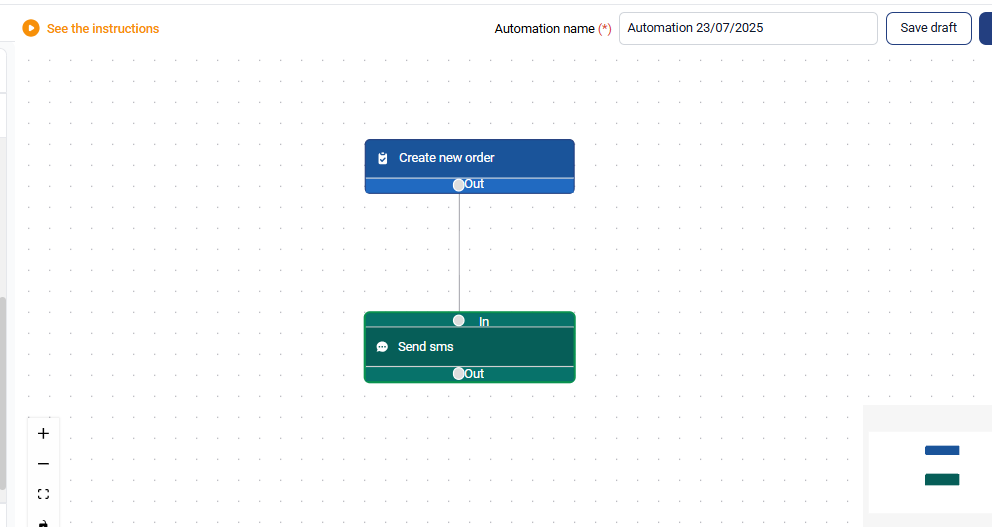
* Go to Marketing (F3) → Select Marketing Automation → Add New → Develop from Scratch.
* Conditions: Create a new order (or Order Payment).
* Action: Send SMS.
* Connect the condition's output to the action's input.
* Click on each block to set the conditions as required.
* Once the automation is set up, click Activate. The system will begin running after the automation is triggered.
## Question 2: How can I send bulk SMS to all customers who have birthdays this year and belong to a fixed customer group?
To send SMS to all customers in a group with the same birth year, follow these steps:
**Step 1**: Search for customers with the same birth year
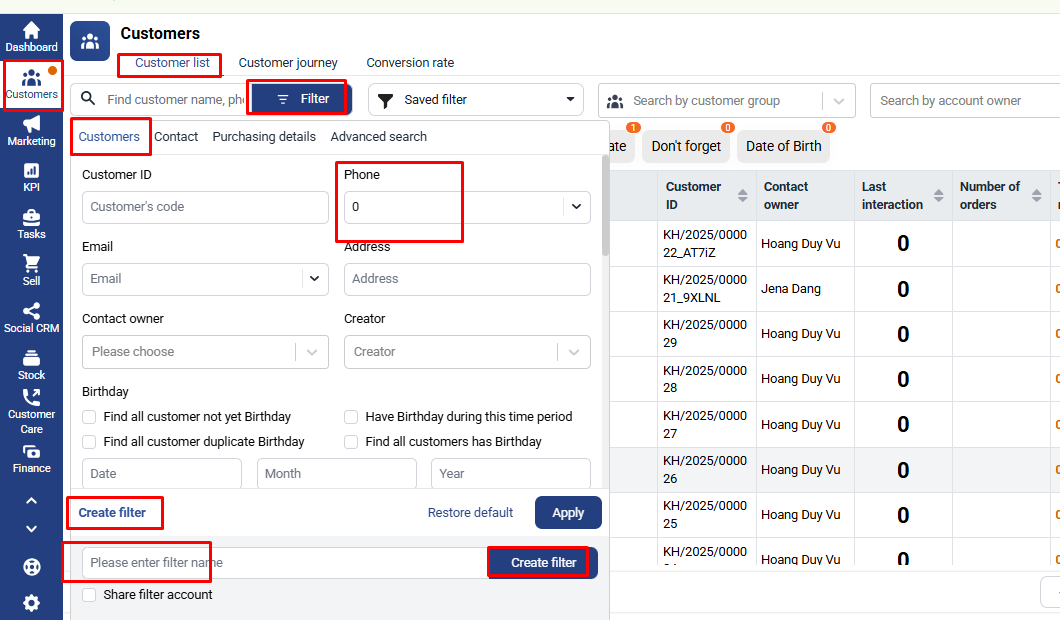
Access the Customer List → Select Filters → Customer Tab → Choose Birthday Condition → Enter the birth year (e.g., 1990) → Apply.
**Step 2**: Search for customers in the same group
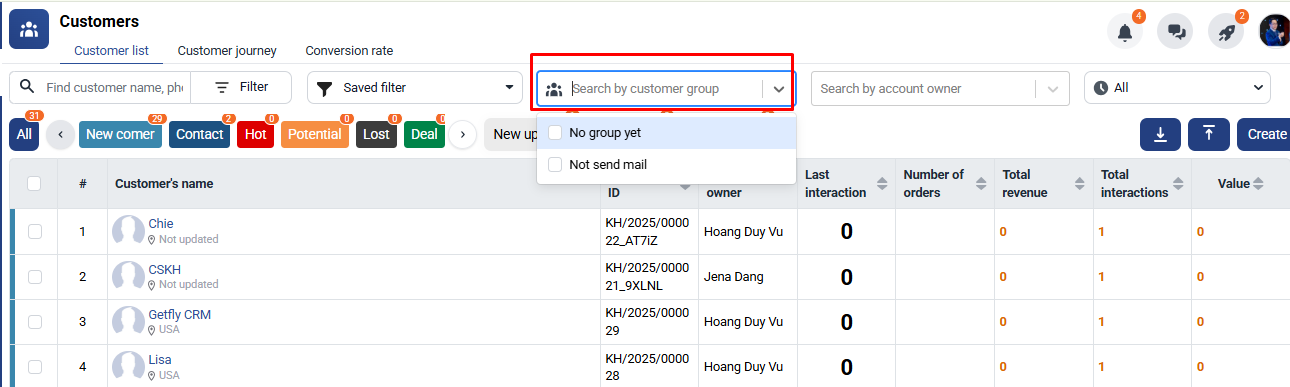
On the Customer List screen, continue to select Customer Group Condition → Choose the customer group
**Step 3:** Create a filter for customers that meet the conditions
Click on Filters → Select Create Filter → Enter a name for the filter → Click Create Filter to save the filter for those customers who meet the search conditions.
**Step 4**: After creating the filter for the customers, go to Marketing → SMS Marketing → Add New → Select the filter you created in Step 3, enter the SMS content, and add New.
**Some Notes When Sending SMS:**
* To ensure speed and avoid interruptions, it is recommended to send no more than 2,000 messages at a time.
* Check the SMS limit on the system to avoid exceeding the sending limit. Go to Settings → Select System Information → Marketing → SMS Limit.
## Question 3: How can I send SMS to all customers in the system?
To send SMS to all customers in the system, follow these steps:
**Step 1**: Create a filter
* Go to Customers → Select Filters → Enter a phone number containing "0" → Click Create Filter → Name the filter and save it.
**Step 2:** Send SMS to this filter
* Go to SMS Marketing → Click Add New to send SMS to the filter.
* Select the information to send to the filter, enter the SMS content, and fill in the brand name to send → Click Add New to send SMS to the filter.
**Note:**
* Before sending the SMS, make sure to check the SMS limit in the system and verify if there is enough SMS quota available with the provider.
* Test sending one SMS to check if the system is functioning correctly and to verify spelling and content before sending in bulk.