> For the complete documentation index, see [llms.txt](https://helpdesk.getfly.vn/llms.txt). Markdown versions of documentation pages are available by appending `.md` to page URLs; this page is available as [Markdown](https://helpdesk.getfly.vn/web-version/integrations/dropbox.md).
# Dropbox
**Dropbox Integration Guide with Getfly CRM**
Dropbox is a cloud storage service that allows users to create a special folder on their computer that is automatically synchronized with a corresponding folder on Dropbox’s cloud. It is widely used by individuals and businesses worldwide to store important files, share them, and access data from anywhere.
## 1. **Integration Overview**
The integration between Getfly CRM and Dropbox is a two-way synchronization.
This integration allows users to:
Diversify their storage options.
Enjoy unlimited file size and format uploads (documents, customer files, task files, etc.).
Easily manage folders and files directly on Getfly: create/edit/delete folders; upload/edit/delete/preview files.
## 2. **How to Connect Dropbox**
### 2.1 **Integration Steps**
**Step 1:** Enable the integration in system settings\
Go to: Settings → Integration → Other Software Integration → click the Dropbox icon → select Connect
**Step 2:**\
Once you click Connect, you’ll be redirected to the Dropbox login page via Getfly.\
Choose to sign in using your Google Account or Apple Account.
**Step 3:**\
After signing in, the integration will be successfully established.
### 2.2 **Disconnecting Dropbox**
To disconnect Dropbox from Getfly:\
Go to Settings → Integration → Other Software Integration → click on the Dropbox icon → select Disconnect
## 3. **How to Upload Documents to Dropbox**
### 3.1 From the “Documents” Section
Navigate to Documents → Dropbox → click Add New → choose to Upload File or Create Folder.
Any file or folder created via Getfly in the Dropbox section will be automatically synced to your Dropbox account (under “My Activity”) — and vice versa.
### 3.2 **From Customer or Task Communication**
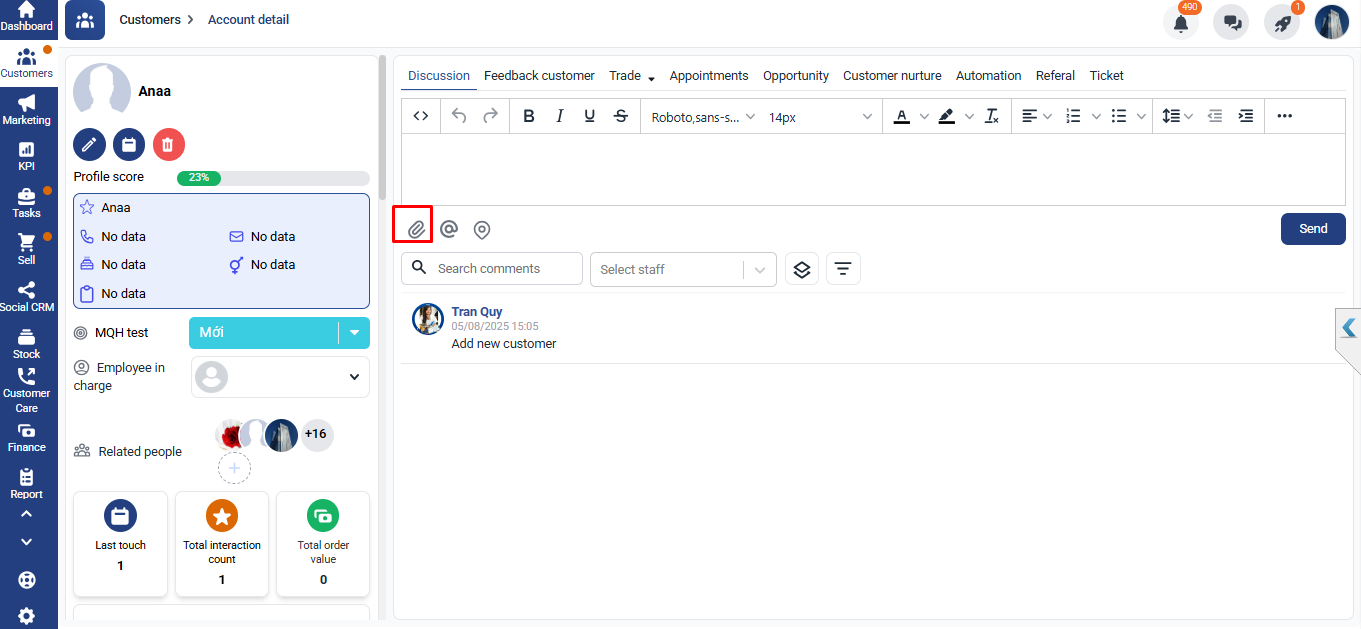
When adding attachments, click Attach File → select Upload from Dropbox → choose your file and click Send.
## 4. **Notes**
Only one Dropbox account can be integrated per Getfly system.
Permissions for viewing, uploading, editing, and deleting files/folders in Dropbox on Getfly are managed via the File Management permission.
## 5. **Activity Logs**
To review your Dropbox activity logs:\
Go to the "i" Logs section.
The following actions are recorded:
Folders: Created, renamed, deleted
Files: Renamed, deleted
Only users with File Management permission can perform create/edit/delete actions.